博客

  • electron自动更新

    工具

    打包工具 electron-builder
    自动更新工具 electron-updater

    1 配置服务器地址

    在package.json的build下配置

    ...
    "build"{
      "publish": {
          "provider": "generic",
          "url": "https://www.domain.com/update"
        }
    }
    ...

    这个url目录下放的是打包后的exe文件 还有latest.yml文件
    这个latest.yml文件是设置了 publish这个配置之后自动生成的文件

    2 编写代码

    在electron文件夹下,新增update.js文件

    const { autoUpdater } = require('electron-updater');
    var mainWindow = null;
    
    const checkUpdate = (win,ipcMain) => {
      autoUpdater.autoDownload = true;
      autoUpdater.autoInstallOnAppQuit = true;
      mainWindow = win;
    
      autoUpdater.checkForUpdatesAndNotify().catch();
    
      ipcMain.handle('install',()=>autoUpdater.quitAndInstall());
    }
    
    module.exports = checkUpdate;

    3 在main.js 中调用checkUpdate方法

    const checkUpdate = require('./update')
    
    const { app, BrowserWindow, ipcMain, Menu, shell } = require('electron')
    
      mainWindow = new BrowserWindow({
        width: 1200,
        height: 800,
        minWidth: 1200,
        minHeight: 800,
        backgroundColor: '#E0E4F8',
        webPreferences: webPreferencesConfig,
        icon: path.join(__dirname, 'assets/icon.png'),
        show: false,
        titleBarStyle: 'hidden',
        frame: false
      });
    
    
      checkUpdate(mainWindow,ipcMain);

    4 更新包和latest.yml到服务器的对应路径中

    publish中配置的路径

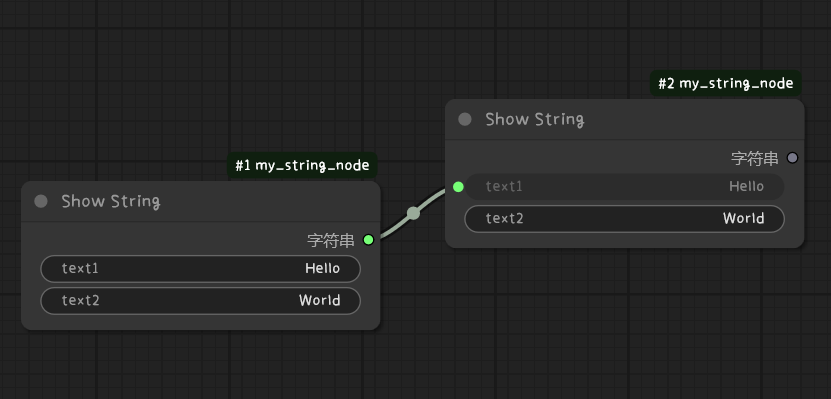
  • comfyui最简节点

    class MyStringNode:
        @classmethod
        def INPUT_TYPES(s):
            return {
                "required": {
                    "text1": ("STRING", {"default": "Hello"}),
                    "text2": ("STRING", {"default": "World"}),
                }
            }
    
        RETURN_TYPES = ("STRING",)
        FUNCTION = "show_string"
        CATEGORY = "Examples"
        OUTPUT_NODE = True
    
        def show_string(self, text1, text2):
            result = text1 + text2
            print(result)
            return (result,)
    
    NODE_CLASS_MAPPINGS = {
        "MyStringNode": MyStringNode
    }
    NODE_DISPLAY_NAME_MAPPINGS = {
        "MyStringNode": "Show String"
    }
  • uniapp的nvue中文字换行问题

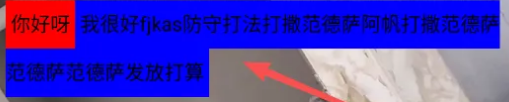
    在uniapp中使用播放器video这种原生组件,会导致层级问题。解决这个问题的办法就是使用nvue页面。但是这个页面的css样式很多都不支持。其中文字换行就是一个。
    第一层
    在一个text中,文字是可以换行,但是不能做到给不同的文字不同的样式。

    第二层
    如果仅仅是考虑文字的颜色问题:直接用rich-text,可以设置不同的颜色。但是无法解决背景颜色问题。而且不能解决宽度自适应的问题。如果给外层套一层view,设置背景颜色就是100%的宽度了。或者固定的宽度。

    第三层
    用text包裹单个字符,外层给出 flex-flow: row wrap的样式。这种方式可以给每个字符设置背景颜色,以及padding margin等属性。问题就是无法整体设置。但是可以用一些取巧的办法。比如第一个字符可以是任意一个字,颜色设置透明,最后一个字同样操作。中间的字符只要设置padding-top padding-bottom就行。这样就能伪装成一个块了。但是如果用v-for遍历字符,会丢失表情字符

    第四层
    用Array.from 将字符串转成字符数组。保留了表情字符。

    最后的效果:

  • python使用pydirectinput模拟操作

        import pydirectinput
    import time
    import random
    from typing import Tuple, Optional
    
    class AutoClicker:
        def __init__(self):
            # 初始化自动点击器
            # 设置 pydirectinput 参数
            pydirectinput.FAILSAFE = True  # 启用故障安全(移动鼠标到左上角停止)
            pydirectinput.PAUSE = 0.1  # 操作间隔时间
    
        def click_at_position(self, x: int, y: int, button: str = "left", clicks: int = 1):
            """
            在指定位置点击
    
            Args:
                x: X 坐标
                y: Y 坐标
                button: 鼠标按钮 ("left", "right", "middle")
                clicks: 点击次数
            """
            try:
                pydirectinput.click(x, y, button=button, clicks=clicks)
                print(f"在位置 ({x}, {y}) 点击了 {clicks} 次 {button} 键")
            except Exception as e:
                print(f"点击失败: {e}")
    
        def move_to_position(self, x: int, y: int):
            """
            移动鼠标到指定位置
    
            Args:
                x: X 坐标
                y: Y 坐标
            """
            try:
                pydirectinput.moveTo(x, y)
                print(f"鼠标移动到位置 ({x}, {y})")
            except Exception as e:
                print(f"移动鼠标失败: {e}")
    
        def drag_and_drop(self, start_x: int, start_y: int, end_x: int, end_y: int):
            """
            拖拽操作
    
            Args:
                start_x: 起始 X 坐标
                start_y: 起始 Y 坐标
                end_x: 结束 X 坐标
                end_y: 结束 Y 坐标
            """
            try:
                pydirectinput.moveTo(start_x, start_y)
                pydirectinput.mouseDown(button="left")
                time.sleep(0.1)
                pydirectinput.moveTo(end_x, end_y)
                time.sleep(0.1)
                pydirectinput.mouseUp(button="left")
                print(f"从 ({start_x}, {start_y}) 拖拽到 ({end_x}, {end_y})")
            except Exception as e:
                print(f"拖拽失败: {e}")
    
        def double_click(self, x: int, y: int):
            """
            在指定位置双击
    
            Args:
                x: X 坐标
                y: Y 坐标
            """
            self.click_at_position(x, y, clicks=2)
    
        def right_click(self, x: int, y: int):
            """
            在指定位置右键点击
    
            Args:
                x: X 坐标
                y: Y 坐标
            """
            self.click_at_position(x, y, button="right")
    
        def scroll(self, x: int, y: int, direction: str = "down", clicks: int = 3):
            """
            在指定位置滚动
    
            Args:
                x: X 坐标
                y: Y 坐标
                direction: 滚动方向 ("up" 或 "down")
                clicks: 滚动次数
            """
            try:
                pydirectinput.moveTo(x, y)
                if direction == "down":
                    pydirectinput.scroll(-clicks)  # 向下滚动
                else:
                    pydirectinput.scroll(clicks)   # 向上滚动
                print(f"在位置 ({x}, {y}) {direction} 滚动了 {clicks} 次")
            except Exception as e:
                print(f"滚动失败: {e}")
    
        def get_mouse_position(self) -> Tuple[int, int]:
            """
            获取当前鼠标位置
    
            Returns:
                鼠标坐标 (x, y)
            """
            try:
                x, y = pydirectinput.position()
                return (x, y)
            except Exception as e:
                print(f"获取鼠标位置失败: {e}")
                return (0, 0)
    
        def click_sequence(self, positions: list, delay: float = 1.0):
            """
            按顺序点击多个位置
    
            Args:
                positions: 位置列表,每个元素为 (x, y) 或 (x, y, button, clicks)
                delay: 每次点击之间的延迟时间
            """
            print(f"开始执行点击序列,共 {len(positions)} 个位置")
            for i, pos in enumerate(positions):
                if len(pos) == 2:
                    x, y = pos
                    self.click_at_position(x, y)
                elif len(pos) == 4:
                    x, y, button, clicks = pos
                    self.click_at_position(x, y, button, clicks)
    
                if i < len(positions) - 1:  # 不是最后一个位置
                    time.sleep(delay)
                    print(f"等待 {delay} 秒...")
    
            print("点击序列执行完成")
    
    def demo_usage():
        """演示使用方法"""
        print("=== PyDirectInput 自动点击程序演示 ===")
        print("注意:移动鼠标到屏幕左上角可以停止程序")
    
        # 创建自动点击器实例
        clicker = AutoClicker()
    
        # 等待用户准备
        print("\n程序将在 3 秒后开始演示...")
        time.sleep(3)
    
        # 获取当前鼠标位置
        current_pos = clicker.get_mouse_position()
        print(f"当前鼠标位置: {current_pos}")
    
        # 演示各种操作
        print("\n1. 移动鼠标到屏幕中央")
        clicker.move_to_position(960, 540)  # 假设 1920x1080 屏幕
    
        print("\n2. 左键点击")
        clicker.click_at_position(960, 540)
    
        print("\n3. 右键点击")
        clicker.right_click(1000, 540)
    
        print("\n4. 双击")
        clicker.double_click(1040, 540)
    
        print("\n5. 拖拽操作")
        clicker.drag_and_drop(800, 400, 1100, 600)
    
        print("\n6. 滚动操作")
        clicker.scroll(960, 540, "down", 5)
    
        print("\n7. 执行点击序列")
        positions = [
            (800, 400),
            (900, 400),
            (1000, 400),
            (1100, 400),
            (1200, 400)
        ]
        clicker.click_sequence(positions, delay=0.5)
    
        print("\n演示完成!")
    
    def custom_clicking():
        """自定义点击功能"""
        clicker = AutoClicker()
    
        print("\n=== 自定义点击模式 ===")
        print("输入坐标进行点击,输入 'q' 退出")
    
        while True:
            try:
                user_input = input("\n请输入坐标 (格式: x,y 或 x,y,button,clicks): ").strip()
    
                if user_input.lower() == 'q':
                    print("退出程序")
                    break
    
                # 解析输入
                parts = user_input.split(',')
                if len(parts) == 2:
                    x, y = map(int, parts)
                    clicker.click_at_position(x, y)
                elif len(parts) == 4:
                    x, y, button, clicks = int(parts[0]), int(parts[1]), parts[2], int(parts[3])
                    clicker.click_at_position(x, y, button, clicks)
                else:
                    print("格式错误!请使用 x,y 或 x,y,button,clicks 格式")
    
            except ValueError:
                print("输入格式错误!请输入有效的数字")
            except KeyboardInterrupt:
                print("\n程序被中断")
                break
    
    if __name__ == "__main__":
        try:
            # 运行演示
            demo_usage()
    
            # 询问是否继续自定义点击
            choice = input("\n是否继续自定义点击?(y/n): ").strip().lower()
            if choice == 'y':
                custom_clicking()
    
        except Exception as e:
            print(f"程序运行出错: {e}")
            print("请确保已安装 pydirectinput: pip install pydirectinput")
  • pytorch最基础的网络训练

    数据加载

    # =============================================================================
    # MNIST手写数字识别神经网络项目
    # 这是一个使用PyTorch构建的简单神经网络,用于识别手写数字0-9
    # =============================================================================
    
    # 导入必要的库
    import torch  # PyTorch深度学习框架
    from pathlib import Path  # 用于处理文件路径
    import requests  # 用于下载数据(虽然这里被注释了)
    import numpy as np  # 数值计算库
    from matplotlib import pyplot  # 绘图库,用于显示图片
    import pickle  # 用于序列化和反序列化Python对象
    import gzip  # 用于处理压缩文件
    import pylab  # matplotlib的简化接口
    import torch.nn.functional as F  # PyTorch的函数式接口
    from torch import nn  # PyTorch的神经网络模块
    from torch.utils.data import TensorDataset  # 用于创建数据集
    from torch.utils.data import DataLoader  # 用于批量加载数据
    from torch import optim  # PyTorch的优化器
    
    # 定义损失函数:交叉熵损失,常用于多分类问题
    loss_fun = F.cross_entropy
    
    # =============================================================================
    # 数据准备部分
    # =============================================================================
    
    # 设置数据存储路径
    DATA_PATH = Path("data")  # 数据文件夹
    PATH = DATA_PATH / "mnist"  # MNIST数据的具体路径
    
    # 创建数据目录(如果不存在的话)
    PATH.mkdir(parents=True, exist_ok=True)
    
    # 原本用于下载数据的URL(已被注释)
    # URL = "http://deeplearning.net/data/minst/"
    
    # MNIST数据文件名
    FILENAME = "mnist.pkl.gz"
    
    # 原本用于下载数据的代码(已被注释)
    # if not(PATH/FILENAME).exists():
    #     content = requests.get(URL + FILENAME).content
    #     (PATH /FILENAME).open("wb").write(content)
    
    # 从压缩文件中加载MNIST数据集
    # MNIST数据集包含训练集、验证集和测试集
    with gzip.open((PATH/FILENAME).as_posix(), "rb") as f:
        ((x_train, y_train), (x_valid, y_valid), _) = pickle.load(f, encoding="latin-1")
    # print(x_train.shape)  # 打印训练数据的形状
    
    # 将numpy数组转换为PyTorch张量(tensor)
    # 这是PyTorch处理数据的基本格式
    x_train, y_train, x_valid, y_valid = map(torch.tensor, (x_train, y_train, x_valid, y_valid))
    
    # print(x_train.shape, y_train.shape, x_valid.shape, y_valid.shape)  # 打印所有数据的形状
    
    # 以下是一些测试代码(已被注释)
    # a = torch.randn([2,2])  # 创建随机2x2张量
    # b = torch.randn([2,2])  # 创建随机2x2张量
    # print(loss_fun(a,b))  # 测试损失函数
    
    # 测试图片显示的代码(已被注释)
    # img = torch.tensor([0,0,0,1,0,0,0,0,0])  # 创建简单的3x3图片
    # pyplot.imshow(img.reshape(3,3), cmap="gray")  # 显示图片
    # pyplot.show()
    
    # 显示MNIST训练图片的代码(已被注释)
    # pyplot.imshow(x_train[2].reshape(28,28), cmap="gray")  # 显示第3张训练图片
    # pyplot.show()
    
    # 以下是一些手动实现神经网络的代码(已被注释)
    # bs = 64  # 批次大小
    # xb = x_train[0:bs]  # 取前64个训练样本
    # yb = y_train[0:bs]  # 对应的标签
    # weights = torch.randn([784,10], dtype=torch.float, requires_grad=True)  # 权重矩阵
    # bias = torch.zeros(10, requires_grad=True)  # 偏置向量
    # loss_func = F.cross_entropy  # 损失函数
    # =============================================================================
    # 神经网络模型定义
    # =============================================================================
    
    class Minst_NN(nn.Module):
        """
        MNIST手写数字识别的神经网络模型
        网络结构:输入层(784) -> 隐藏层1(128) -> 隐藏层2(256) -> 输出层(10)
        784 = 28*28,因为MNIST图片是28x28像素
        10 = 数字0-9的10个类别
        """
    
        def __init__(self):
            super().__init__()  # 调用父类构造函数,这是必须的
            # 第一个全连接层:784个输入特征 -> 128个隐藏单元
            self.hidden1 = nn.Linear(784, 128)
            # 第二个全连接层:128个输入特征 -> 256个隐藏单元
            self.hidden2 = nn.Linear(128, 256)
            # 输出层:256个输入特征 -> 10个输出(对应0-9数字)
            self.out = nn.Linear(256, 10)
            # Dropout层:随机丢弃50%的神经元,防止过拟合
            self.dropout = nn.Dropout(0.5)
    
        def forward(self, x):
            """
            前向传播函数
            定义数据如何通过网络层
            """
            # 第一层:线性变换 + ReLU激活函数
            x = F.relu(self.hidden1(x))
            # 应用Dropout防止过拟合
            x = self.dropout(x)
            # 第二层:线性变换 + ReLU激活函数
            x = F.relu(self.hidden2(x))
            # 再次应用Dropout
            x = self.dropout(x)
            # 输出层:线性变换(不需要激活函数,因为使用交叉熵损失)
            x = self.out(x)
            return x
    
    # =============================================================================
    # 数据准备和训练设置
    # =============================================================================
    
    # 设置批次大小(每次训练使用的样本数量)
    bs = 64
    
    # 创建训练和验证数据集
    # TensorDataset将输入数据和标签打包成数据集
    train_ds = TensorDataset(x_train, y_train)  # 训练数据集
    valid_ds = TensorDataset(x_valid, y_valid)  # 验证数据集
    
    def get_data(train_ds, valid_ds, bs):
        """
        创建数据加载器
        数据加载器用于批量加载数据,提高训练效率
        """
        return (
            DataLoader(train_ds, batch_size=bs, shuffle=True),  # 训练数据加载器,打乱数据
            DataLoader(valid_ds, batch_size=bs*2),  # 验证数据加载器,批次大小是训练时的2倍
        )
    
    def loss_batch(model, loss_fun, xb, yb, opt=None):
        """
        计算一个批次的损失并更新模型参数
    
        参数:
        - model: 神经网络模型
        - loss_fun: 损失函数
        - xb: 输入数据批次
        - yb: 标签批次
        - opt: 优化器(可选,如果提供则更新参数)
    
        返回:
        - loss.item(): 损失值
        - len(xb): 批次大小
        """
        # 计算损失:模型预测结果与真实标签的差异
        loss = loss_fun(model(xb), yb)
    
        # 如果提供了优化器,则进行反向传播和参数更新
        if opt is not None:
            loss.backward()  # 反向传播,计算梯度
            opt.step()      # 更新模型参数
            opt.zero_grad() # 清零梯度,为下次计算做准备
    
        return loss.item(), len(xb)  # 返回损失值和批次大小
    
    def fit(steps, model, loss_func, opt, train_dl, valid_dl):
        """
        训练模型的主函数
    
        参数:
        - steps: 训练轮数
        - model: 神经网络模型
        - loss_func: 损失函数
        - opt: 优化器
        - train_dl: 训练数据加载器
        - valid_dl: 验证数据加载器
        """
        for step in range(steps):
            # 设置模型为训练模式(启用Dropout等)
            model.train()
            # 遍历训练数据的所有批次
            for xb, yb in train_dl:
                loss_batch(model, loss_func, xb, yb, opt)
    
            # 设置模型为评估模式(禁用Dropout等)
            model.eval()
            # 在验证集上评估模型(不计算梯度)
            with torch.no_grad():
                losses, nums = zip(
                    *[loss_batch(model, loss_func, xb, yb) for xb, yb in valid_dl]
                )
            # 计算验证集上的平均损失
            val_loss = np.sum(np.multiply(losses, nums)) / np.sum(nums)
            print("当前step:" + str(step), '验证集损失:' + str(val_loss))
    
    def get_model():
        """
        创建模型和优化器
    
        返回:
        - model: 神经网络模型
        - opt: Adam优化器
        """
        model = Minst_NN()  # 创建模型实例
        return model, optim.Adam(model.parameters(), lr=0.001)  # 返回模型和Adam优化器
    
    
    # =============================================================================
    # 模型训练和评估
    # =============================================================================
    
    # 创建数据加载器
    train_dl, valid_dl = get_data(train_ds, valid_ds, bs)
    
    # 创建模型和优化器
    model, opt = get_model()
    
    # 开始训练模型(训练10个epoch)
    print("开始训练模型...")
    fit(10, model, loss_fun, opt, train_dl, valid_dl)
    
    # =============================================================================
    # 模型验证和准确率计算
    # =============================================================================
    
    print("\n开始验证模型准确率...")
    
    # 初始化准确率计算变量
    correct = 0  # 预测正确的样本数
    total = 0    # 总样本数
    
    # 设置模型为评估模式
    model.eval()
    
    # 在验证集上测试模型
    with torch.no_grad():  # 不计算梯度,节省内存和计算时间
        for xb, yb in valid_dl:
            # 获取模型预测结果
            outputs = model(xb)
            # 找到预测概率最高的类别(torch.max返回值和索引,我们只要索引)
            _, predicted = torch.max(outputs.data, 1)
    
            # 统计总样本数
            total += yb.size(0)
            # 统计预测正确的样本数
            correct += (predicted == yb).sum().item()
    
    # 计算并打印准确率
    accuracy = 100 * correct / total
    print("模型在验证集上的准确率: {:.2f}%".format(accuracy))
    print("正确预测: {}/{}".format(correct, total))
  • pycharm环境配置

    第一步
    根据自己的安装地址,将conda环境加入到环境变量:
    D:\ProgramData\anaconda3
    D:\ProgramData\anaconda3\Scripts
    D:\ProgramData\anaconda3\Library\bin
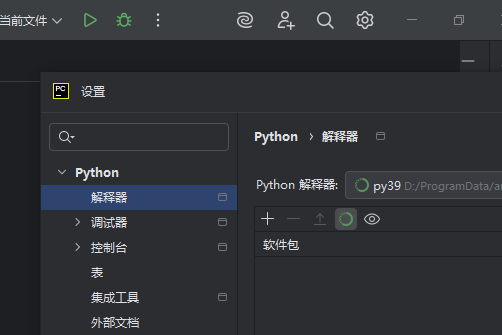
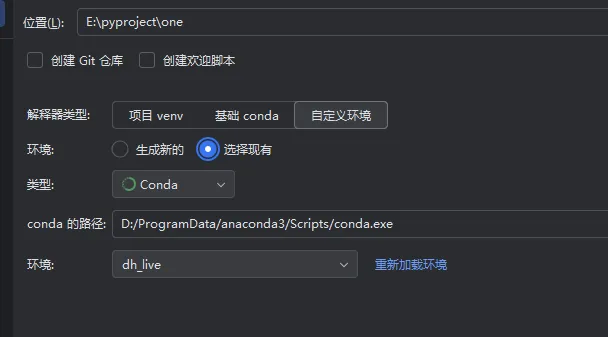
    第二步
    pycharm中设置conda地址